What the OBJ keeps, and what it loses
| In the OBJ | |
|---|---|
| Shape | Every triangle of every mesh, where the scene places it, as it stands at rest |
| Names | Each mesh an object of its own, with its name |
| Colors | Each mesh's material color, in a material file beside it. A mesh of several materials is an object for each |
| Size | Millimeters, from the unit the FBX states, or another unit you choose |
| Which way up | Y up |
| Textures | Lost. A GLB keeps them |
| Skeletons and animations | Lost: the model is saved at rest |
| Lights, cameras, curves | Left out |
How to convert an FBX to OBJ
- Drop the FBX on this page, or choose it with the button.
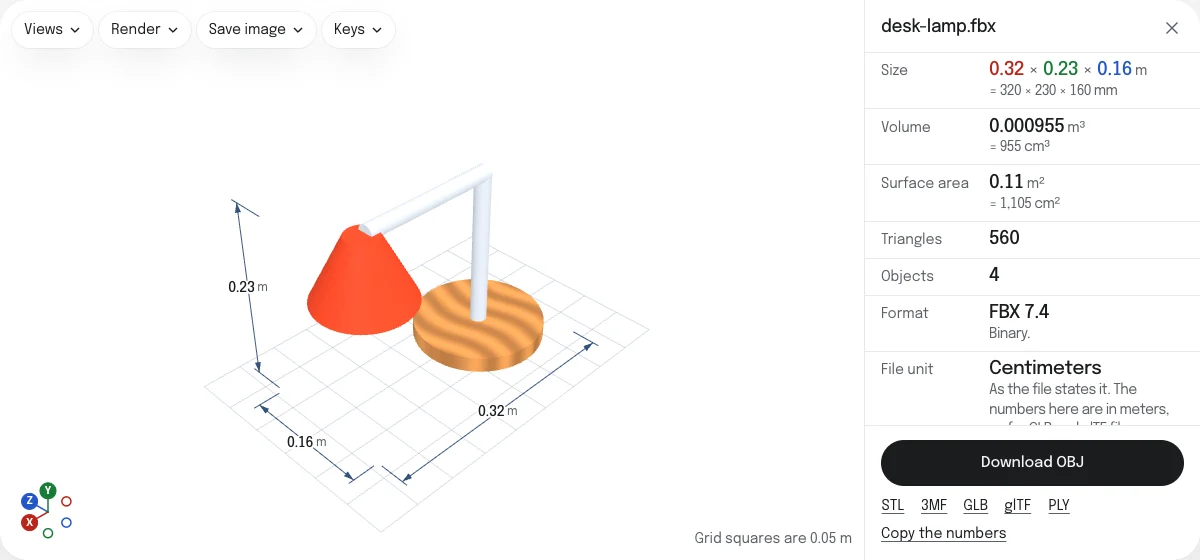
- Look at the model and its size. The panel gives it in meters, from the unit the FBX states.
- Choose the unit of the OBJ under Unit of a saved STL, OBJ or PLY: millimeters for a slicer or a CAD program, meters for Blender.
- Choose Download OBJ. You get a ZIP with the OBJ and its material file, named after the FBX.
A rigged character
An FBX from an animation program often holds a character with a skeleton: its mesh is bent by its bones, and an animation moves them. The OBJ is the mesh as the viewer shows it at rest, bent as the skeleton holds it when nothing plays. Neither the skeleton nor the animation is kept, since OBJ has neither. For a model that keeps them, save a GLB.
Unit and orientation
The FBX states its unit, centimeters in most files, and the viewer shows the model in meters from it. An OBJ states no unit at all: whoever reads it decides. The OBJ is written in millimeters to begin with; choose the unit the program reading it expects. It is written with Y up, the way most programs read an OBJ, and an FBX drawn on Z is stood on Y first.
OBJ, STL or GLB
An OBJ keeps names and colors for another modeling program. To 3D print the model, an STL or a 3MF in millimeters, standing on Z, is what a slicer expects. For the web, a game engine or AR, a GLB keeps the textures and the animations too.
Questions
Is my file uploaded?
No. The FBX is read and the OBJ is written by your own browser. Nothing is sent to a server.
Why do I get a ZIP?
An OBJ keeps its colors in a second file, the material file (.mtl), which it names. Every mesh of an FBX has a material, so the two come together, in one ZIP: unzip it and keep the OBJ and the MTL side by side. A model colored vertex by vertex, in colors that blend across its faces, keeps them in the OBJ itself, and comes as an OBJ alone.
Are the textures kept?
No. The OBJ has each material's own color, which for a textured material is often white or gray, and not its pictures or the coordinates that lay them on the surface. To keep the textures, save a GLB.
What unit is the OBJ in?
Millimeters to begin with, which is what slicers and most CAD programs read an OBJ in. Blender reads one unit of an OBJ as a meter: choose Meters under Unit of a saved STL, OBJ or PLY, and the model arrives at its real size there.
Which pose is saved for an animated character?
The pose it stands in without the animation playing, as the viewer shows it when it opens: a rigged character in the pose of its file, often a T or an A. An animation playing is stopped first. OBJ has no skeleton or animation.
Which way up is the OBJ?
Y up, which is the way Blender and most modeling programs read an OBJ. An FBX that stands on Z is stood on Y first, as the viewer shows it.