What changes when you convert
A STEP file describes a part exactly: a hole is a true cylinder. An STL describes it as triangles: the hole becomes a ring of flat strips. Converting means deciding how many strips.
What is kept: the shape, to within the mesh quality you choose, and the size.
What is lost: the exactness of curves, the part names and colors, and the ability to edit the part in CAD. Keep the STEP file; the STL is for the slicer.
Mesh quality, in numbers
| A circle becomes | Use it for | |
|---|---|---|
| Coarse | About 11 sides | A quick look, very large assemblies |
| Normal | About 21 sides, more on large curves | Most printed parts |
| Fine | About 79 sides | Visible curves, holes and shafts that have to fit |
Flat faces are exact at every setting, and finer settings only add triangles where the part is curved. A box is 12 triangles whatever you choose.
There is no reason to go finer than your printer can show. A 0.4 mm nozzle cannot reproduce a facet a hundredth of a millimeter deep.
One file or one per part
A single part gives a single STL. For an assembly you choose:
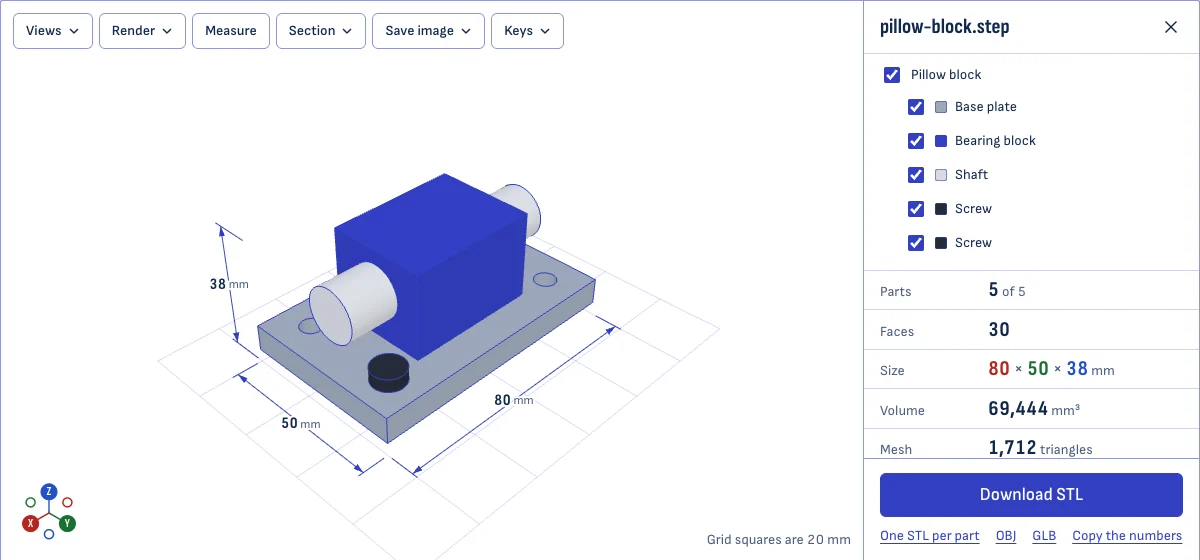
- Download STL puts every part that is shown into one file, each where the assembly places it. Use it to print the assembly as it stands, or to check the fit.
- One STL per part gives a ZIP with a separate file for each part, named after it. Use it when the parts are printed separately.
Hide parts in the list before saving and they are left out.
How to convert a STEP file to STL
- Drop the STEP or STP file on this page, or choose it with the button. It is read in your browser; nothing is uploaded.
- Look at the model and its size. A STEP file states its units, so the size shown is the real one, in millimeters.
- Choose the mesh quality. Normal suits most printed parts.
- For an assembly, untick the parts you do not want, or leave them all.
- Choose Download STL. The file is named after the STEP file.
The STL is binary, the compact kind that every slicer reads, and it is in millimeters. A part drawn in inches is converted on the way, so it arrives in the slicer at its real size and not 25.4 times too small.
STL, OBJ or GLB
STL is what slicers expect, and it holds only the shape. The same model can be saved in two other mesh formats, from the links under the button:
- OBJ keeps each part as a named object. When the parts have colors, they go into a material file beside it, and the two come in one ZIP.
- GLB keeps names and colors in a single file, and opens in most 3D viewers and game engines.
For printing, STL is the right choice. Use OBJ or GLB when the model goes on to a renderer or a 3D scene and its colors matter.
Checking the result
The model you see is the mesh you get: it is drawn at the quality you chose. Turn it, cut it open with Section, and read the size before you download. To check an STL afterwards for holes, open it in the STL viewer.
Questions
Which mesh quality should I choose for 3D printing?
Normal is right for most parts. Choose Fine when a round surface has to look smooth or fit something, such as a bore or a thread relief: a Ø20 mm hole is then off by less than a hundredth of a millimeter, far below what a printer can show. Coarse is for a quick look or a very large assembly.
Will the STL be the right size?
Yes. A STEP file states its units, and the STL is written in millimeters, which is what slicers assume. A model drawn in inches is converted on the way.
Will the STL be watertight?
Each solid in the STEP file becomes a closed mesh, so a part that is a proper solid gives a printable STL. A file that holds loose surfaces gives a mesh with open edges; the STL viewer shows those in red.
Can I get one STL per part?
Yes. For an assembly, choose One STL per part and you get a ZIP with a file for each, named after the part. You can also hide parts first: only what is shown is saved.
Are colors kept?
Not in STL, which has no color. Save as OBJ or GLB instead to keep part colors and names.
Is my file uploaded?
No. The conversion runs in your browser. Nothing is sent to a server.