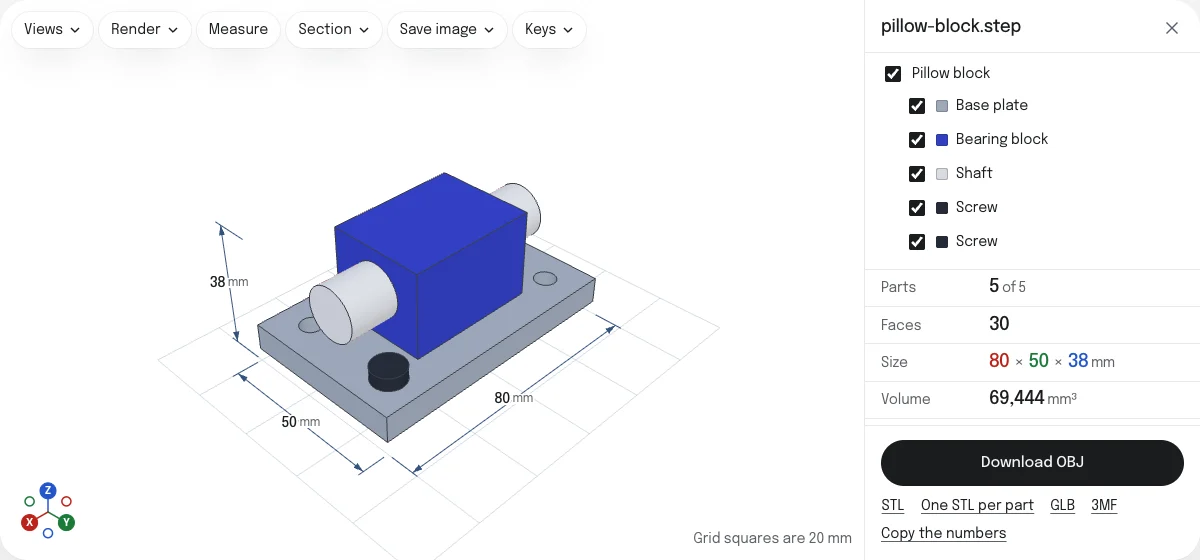
What the OBJ keeps, and what it loses
A STEP file describes each part exactly, as faces of a solid: a hole is a true cylinder. An OBJ describes it as triangles. The converter cuts every curved face into triangles at the quality you choose and writes them as one object for each part.
| In the OBJ | |
|---|---|
| Shape | Triangles, as fine as the mesh quality. Flat faces are exact |
| Size | Millimeters, the real size whatever unit the STEP was drawn in |
| Parts | An object for each part, named after it, placed as in the assembly |
| Colors | Each part's color, in the material file beside the OBJ |
| Shading | Normals for each corner, so curved faces shade smoothly |
| Assembly structure | Flattened: every part on its own, a part used twice written twice |
| Colors of single faces | Not kept: the part's own color is used, or gray when it has none |
| Exact geometry | Lost. The OBJ cannot be edited as a solid in CAD; keep the STEP file |
How to convert a STEP file to OBJ
- Drop the STEP or STP file on this page, or choose it with the button. It is read in your browser; nothing is uploaded.
- Look at the model, its parts and its size. A STEP file states its units, so the size shown is the real one.
- Choose the mesh quality. Normal suits most uses.
- Untick any parts you do not want in the file.
- Choose Download OBJ. With colors you get a ZIP with the OBJ and its material file; without, the OBJ alone. Both are named after the STEP file.
A part or a small assembly is ready in a second or two. A very large assembly takes longer to read, with a line saying what is being done and Cancel beside it.
Names, colors and the material file
Each part becomes an o object in the OBJ, named after the part in the STEP file, with spaces turned into underscores and other punctuation left out (“Bearing block” becomes Bearing_block), since an OBJ name is one word. In Blender each object arrives as its own object in the outliner.
Colors are kept as materials: one for each color the parts use, in a material file named after the OBJ. Programs that read OBJ read that file when it sits beside the OBJ, so keep the two together. A part with no color in the STEP file is given a plain gray. Colors set on single faces, which some CAD programs allow, are not kept; the part’s own color is used, or gray when the part has none.
Size and orientation
An OBJ is a list of numbers with no unit and no up direction. The numbers here are millimeters, and the axes are the STEP file’s own.
- Size. A program that reads OBJ numbers as millimeters, or asks, shows the model at its real size. Blender takes one unit as one meter, so a part 80 mm long arrives 80 meters long: set the scale to 0.001 when you import it.
- Up. Most CAD programs draw with Z up, and the OBJ keeps that. A program that takes Y as up shows the model on its back: set the up axis to Z when you import it, or turn the model once it is in.
A GLB states both, so it arrives at its real size and the right way up without any setting.
Mesh quality
Curved faces have to be cut into triangles, and the quality decides how finely: Coarse, Normal and Fine go by the size of the model, and Custom takes a tolerance in millimeters and an angle of your own. Flat faces are exact at every setting. The STEP to STL converter explains the four in numbers; they work the same here.
OBJ, GLB or STL
- OBJ is read by nearly every 3D program, and is easy to edit by hand. It needs its material file for colors.
- GLB keeps the names and colors in one file, with its unit and its up direction stated. It is the better choice for a web page, AR or a game engine.
- STL is for 3D printing: one mesh, no names, no colors.
The others, and a 3MF for a slicer, are saved from the links under the button.
Questions
Is my file uploaded?
No. The STEP file is read and the OBJ is written by your own browser. Nothing is sent to a server.
Why do I get a ZIP?
An OBJ keeps its colors in a second file, the material file (.mtl), which it names. When the parts have colors the two come together in one ZIP, so they cannot be separated on the way: unzip it and open the OBJ with the MTL beside it. A model with no colors is a single .obj.
What unit is the OBJ in?
Millimeters. An OBJ has no unit of its own, so the numbers are the STEP file's sizes in millimeters, whatever unit the part was drawn in. Blender reads one unit of an OBJ as one meter, so set the import scale to 0.001 there, or save a GLB instead, which states its unit.
Which way up does the model come in?
As the STEP file has it, which in most CAD programs is with Z up. An OBJ does not say which way is up, and many programs take Y as up: if the model lies on its back, set the up axis to Z when you import it.
Are the parts kept apart?
Yes. Each part is an object of its own, named after the part in the STEP file, and placed where the assembly puts it. A part used twice, such as two identical screws, is written twice. Subassemblies are not kept as groups: every part is listed on its own.
Can I get one OBJ per part?
Not as separate files. The OBJ holds every part as an object, which Blender and most other programs let you pick and save one at a time. For printing, the page also saves one STL per part in a ZIP.
Which mesh quality should I choose?
Normal for most uses. Fine when round faces will be seen up close, as in a rendering. Coarse for a large assembly in a game engine or a web page, where every triangle costs. The triangle count is shown before you download.