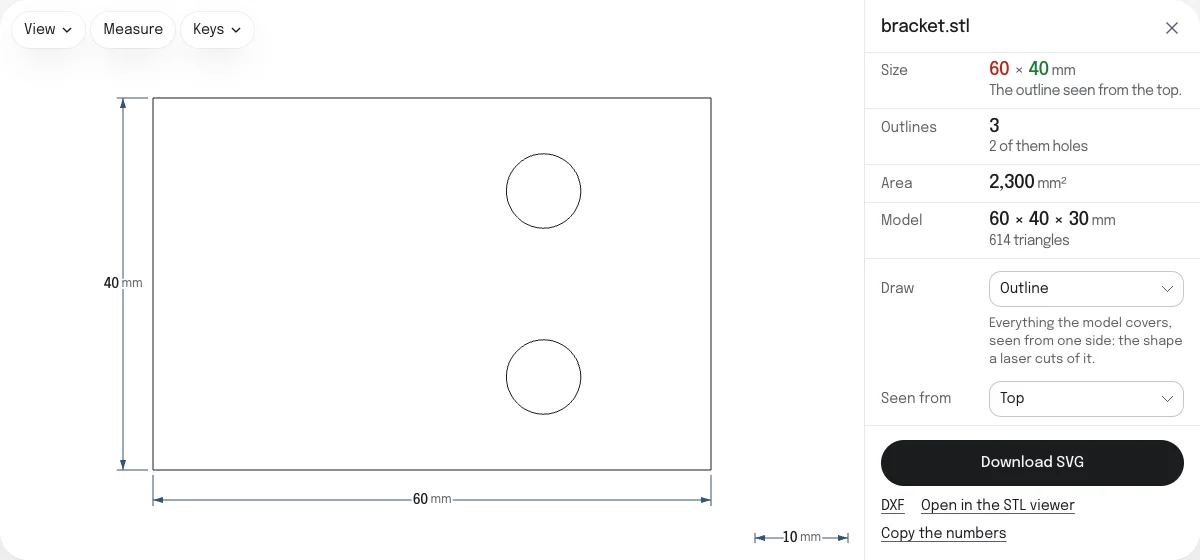
Outline or section
The page draws the model in one of two ways, chosen under Draw:
- Outline: everything the model covers, seen from one side. It is the shape a laser cuts of a flat part, a cookie cutter’s edge, or the footprint of a part on a plate.
- Section: where a flat plane across the model cuts it, at the height you set under Cut at. It is a slice: what is there at that height, holes included.
The sample bracket is a base 60 × 40 × 8 mm with a wall 30 mm tall at one end. From the top, its outline is the 60 × 40 mm base with the two holes that go through it. A section from the top at 27 mm is the wall alone, 8 × 40 mm. At 19 mm the plane runs through the hole in the wall, and the section is the wall in two pieces.
Seen from chooses the side: the top, looking down, the front, or the right. A section’s plane faces the same way, and Cut at measures from the model’s lowest point along that side: a height from the top, a depth from the front, a distance from the left side seen from the right. Changing the side starts the plane halfway through the model again.
How to convert an STL to SVG
- Drop the STL on this page, or choose it with the button. It is read in your browser; nothing is uploaded.
- It is drawn at once with its size marked: as its outline from the top the first time, and after that as you chose last. Choose another side, or a section, beside it.
- Check Size. If the model is 25.4 times too large or too small, it was made in another unit: choose it under Units.
- Choose Download SVG. The file is named after the STL.
The same drawing can be saved as a DXF, for CAD and for machines that read DXF, from the link under the button.
What the SVG holds
| In the SVG | |
|---|---|
| Size | The drawing's real size, stated in millimeters, with a margin of two line widths on every side |
| Outlines | Every outline and every hole in it closed, as the pieces of one path with no fill |
| Curves | The straight sides of the model's own triangles |
| Line width | One thin line, an 800th of the drawing's larger side |
| Color | Black. Lines of a section that do not close are red, in a group of their own |
| Place | Each SVG is cut to its own drawing. The DXF is measured from the corner of the model's box, so sections at two heights lie one over the other there |
What is in the SVG is what you see on the page: it is written from the drawing on show. Points of a straight edge that only mark where two triangles met are left out, within a millionth of the model’s size.
Size and units
An STL stores plain numbers and no unit. Slicers and CAD programs read and write them as millimeters, and so does this page to begin with. If the model was made in centimeters, meters, inches or feet, choose that unit under Units: the size follows, and the SVG states it in millimeters. The unit you choose is remembered for the next STL.
Limits
An outline is drawn from up to 5 million triangles, an STL of about 250 MB. A binary STL with more is refused from the count in its first bytes, before it is read. A drawing that takes more than half a second to make again can be stopped.
To look at a model from every side, measure it and check it for holes, open it in the STL viewer.
Questions
Is my file uploaded?
No. The STL is read and the SVG is written by your own browser. Nothing is sent to a server, so a part you are not free to share stays on your device.
What is the difference between the outline and a section?
The outline is everything the model covers seen from one side, as its shadow would be under a light straight above it. A hole that goes all the way through shows as a hole; a pocket that stops partway does not.
A section is a slice: the shape where a flat plane across the model cuts it, at the height you set. It shows what is there at that height and nothing else, so a hole that runs sideways through a wall cuts the wall in two.
Which side is the top?
The side Z points to, which is up in an STL saved for 3D printing and in most CAD programs. Top looks down on the model, Front looks at it along Y with Z up, and Right looks at it from its right side. A model saved with Y up, as some modeling programs save one, lies on its back: its top is what Front shows.
Is the SVG the right size?
Yes. The SVG states its width and height in millimeters: the drawing's size, and a margin of two line widths round it. An STL has no unit, so its numbers are read in the unit chosen under Units, millimeters to begin with, which is what slicers and CAD programs write. The size of the drawing is shown before you download, with its dimensions marked.
Are round holes round?
As round as the model is. An STL is made of flat triangles only, so a hole is a polygon with as many sides as the model has around it, and the SVG follows those sides exactly. The bracket offered as a sample has 48 to a hole.
What if the mesh has holes?
The outline is made all the same: it is the shadow of every triangle there is. A section depends on the mesh being closed where the plane cuts it. Where it is not, the cut cannot go round, and those lines are kept as lines with two ends, drawn in red and counted. Repair the STL first, on the STL repair page, and they close.
Can I go from SVG back to STL?
Yes, with the SVG to STL converter on this site. It raises the filled shapes of an SVG into a solid you can print, at the height you set.