What the SVG keeps, and what it loses
A DXF is a list of entities: lines, arcs, circles, text, each on a layer. An SVG is a picture made of paths. Most of a drawing goes across as it is, and a few things change on the way.
| In the SVG | |
|---|---|
| Size | The drawing's real size, stated in millimeters |
| Layers | A group for each layer shown, with the layer's name. Hidden layers are left out |
| Colors | Exactly as in the file. Lines drawn "black or white, whichever shows" are black |
| Lines and polylines | Paths, with the same corners |
| Circles, arcs, splines | Short straight pieces, 144 to a full circle in most drawings |
| Dashed and center lines | Dashed, each dash a piece of its own |
| Text and dimensions | Filled shapes, no longer editable as text |
| Hatches | Solid ones as filled areas, patterned ones as the lines of their pattern |
| Line widths | One width for every line, an 800th of the drawing's larger side. Points are dots three times as wide |
| Paper space layouts | Not written: the model space is |
What is in the SVG is what you see on the page: it is written from the same lines the view is drawn with.
How to convert a DXF to SVG
- Drop the DXF on this page, or choose it with the button. It is read in your browser; nothing is uploaded.
- Check Size. If the drawing came in 25.4 times too large or too small, change Units to the unit it was drawn in.
- Untick the layers you do not want in the SVG: dimensions, notes, center lines, a title block.
- Choose Download SVG. The file is named after the DXF.
The same drawing can be saved as a PDF to print, or as a PNG picture of the view, from the links under the button.
Size and units
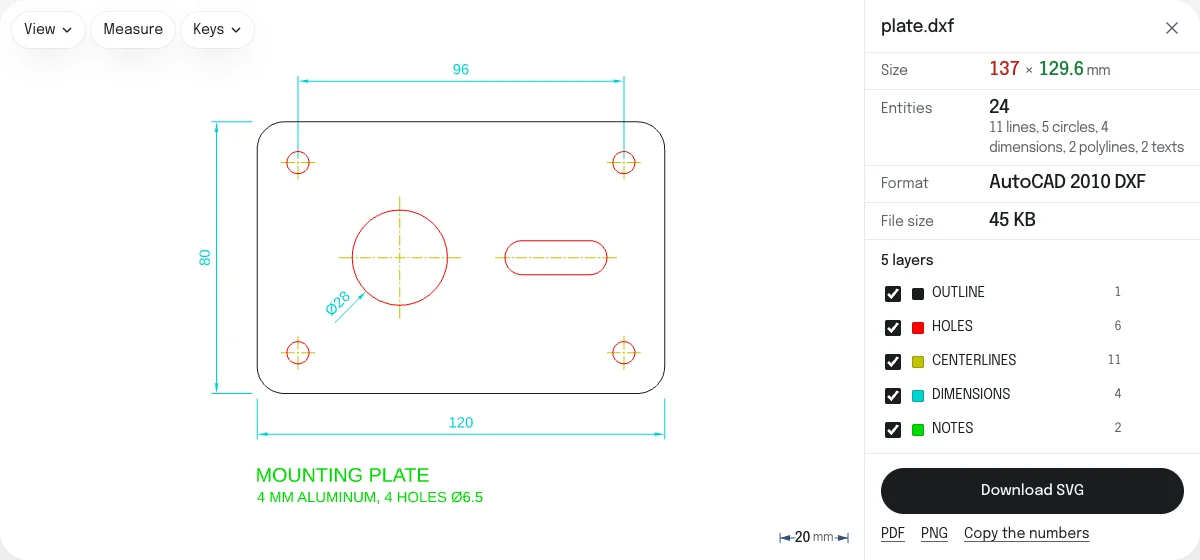
A DXF stores plain numbers and, in its header, the unit they are in. The SVG is written with its width and height in millimeters, worked out from that unit, so a part 120 mm wide is 120 mm wide in Inkscape, Illustrator, LightBurn or a browser.
Many programs leave the unit out of the DXF, or leave it on inches for a drawing made in millimeters. When the file names none, the page asks: choose the unit under Units and the size follows. When the file names the wrong one, choose the right one in the same place.
For laser cutters, vinyl cutters and plotters
- Colors are kept exactly, so software that assigns cuts, scores and engravings by color sorts the lines the way the DXF did.
- Hide what should not be cut. Dimensions and notes are usually on layers of their own. Untick them before you download, and they are not in the file.
- Separate lines stay separate. An outline drawn in the DXF as four lines is four separate pieces in the SVG, not one closed shape. If your cutting software needs closed shapes, join them there, or draw the outline as one polyline in your CAD program.
- Curves are fine for cutting. The straight pieces of a curve stand off it by a few hundredths of a millimeter at most: 0.012 mm on a circle 100 mm across, 0.036 mm on one 300 mm across.
SVG or PDF
Choose the SVG for anything that will be edited or cut: Inkscape, Illustrator, Figma, laser and vinyl software, or a web page. Choose the PDF to print the drawing or send it to someone: it is fitted to A4 or Letter at a standard scale, and keeps the layers as layers a PDF reader can switch.
What is not converted
- Layouts. The model space is written. Paper space layouts, with their title blocks and scaled views, are not. If the model space is empty, the layout stored with it is shown and written instead.
- Images, leaders, tables, multilines and 3D solids in the drawing are not drawn, and so are not in the SVG. When a file has any, the page counts and names them.
- 3D. A drawing with depth is written flat, as seen from above.
To look at a drawing, measure it and check its layers without converting anything, open it in the DXF viewer.
Questions
Is my drawing uploaded?
No. The DXF is read and the SVG is written by your own browser. Nothing is sent to a server, so a drawing you are not free to share stays on your device.
Will the SVG be the right size?
Yes, if the DXF says which unit it is drawn in. The SVG states its width and height in millimeters, worked out from that unit, so Inkscape, Illustrator and laser software open it at the drawing's real size. A DXF that names no unit is asked about: choose the unit it was drawn in under Units, and check Size before you download.
Are the layers kept?
Yes. Each layer becomes a group named after it, which Inkscape opens as a layer. Layers you hide are left out of the SVG altogether, so hiding the dimensions and notes gives a file with only the lines to cut.
Are circles and arcs still curves in the SVG?
No. They are written as short straight pieces, the same ones the drawing is shown with: 144 to a full circle in most drawings. On a circle 100 mm across, that puts the outline at most 0.012 mm inside the true curve, which no laser or cutter can show. Splines and ellipses are written the same way. If you need true arcs, give the machine the DXF itself.
What happens to text?
Each letter is written as a filled shape, in the typeface the page draws text with (Arimo, or Noto Sans for Chinese, Japanese and Korean). The SVG then looks the same on every computer, with no fonts to install, but the text cannot be edited as text.
Can I turn an SVG into a DXF?
Yes, with the SVG to DXF converter on this site. It sets the size in millimeters or inches and turns colors into layers.
Can I convert a DWG to SVG?
Not directly. DWG is AutoCAD's own format, and no browser tool reads it reliably. Convert it to DXF first with the free ODA File Converter, then drop the DXF here. Drop a DWG on this page and it shows you the steps.